Deploy a Go app to your own cloud without DevOps
How to deploy a Go app to your own cloud account without writing Terraform or hiring for ops. From git repo to live endpoint — minutes, not days.
Go apps compile to a single binary and containerise with almost no ceremony — a Dockerfile, a go.mod, done. Getting that container running in your own cloud account — VPC, IAM roles, container registry, load balancer — can take days of console work or a Terraform module you'll be maintaining forever.
The ops overhead isn't proportional to the app. This post shows how to skip it: your Go app, in your own cloud account, without a DevOps hire and without writing a line of infrastructure config.
Why deploying to your own cloud is usually heavy
Cloud infrastructure isn't hard in any one place — it's the number of places. A containerised Go app in AWS involves IAM role creation, ECR repository setup, ECS task definition, Application Load Balancer with TLS, VPC configuration, and security group rules. Each piece is documented. Together, they add up to hours of console work and an IaC module you didn't plan to own.
Managed PaaS (Render, Railway, Heroku) exists because that overhead is real. It removes the ceremony but trades away ownership — your app runs on their infrastructure, under their SLA, on their pricing model.
The ceremony is the problem, not the outcome.
Before you start
You'll need a Leanly account with your cloud account and GitHub connected. If you're new to Leanly, sign up here, install the CLI (npm install leanly --global), and connect your accounts — a one-time setup.
For this guide: your Go app in a GitHub repo, with a Dockerfile checked in — we build the container from it directly.
If you want to follow along with a minimal example, fork leanlydev/leanly-example-golang-app — it's ready to deploy as-is. The app looks like this:
main.go
package main

import (
	"fmt"
	"log"
	"net/http"
	"os"
)

func helloHandler(w http.ResponseWriter, r *http.Request) {
	name := os.Getenv("NAME")
	if name == "" {
		name = "World"
	}
	fmt.Fprintf(w, "Hello %s!", name)
}

func main() {
	port := os.Getenv("PORT")
	if port == "" {
		port = "8080"
	}

	http.HandleFunc("/", helloHandler)

	log.Printf("Example app listening on port %s", port)
	log.Fatal(http.ListenAndServe(":"+port, nil))
}
Dockerfile
ARG GO_VERSION=1.23
ARG PORT=8080

#
# Build
#
FROM golang:${GO_VERSION} AS build

WORKDIR /src

COPY go.mod ./
RUN go mod download

COPY . .

RUN CGO_ENABLED=0 go build -o /app .

#
# Runtime
#
FROM gcr.io/distroless/static-debian12:nonroot
ARG PORT
ENV PORT=${PORT}
COPY --from=build /app /app
EXPOSE ${PORT}
ENTRYPOINT ["/app"]
The deployment
Step 1 — Run leanly init
In your repo:
leanly init
This opens the Leanly UI in your browser.
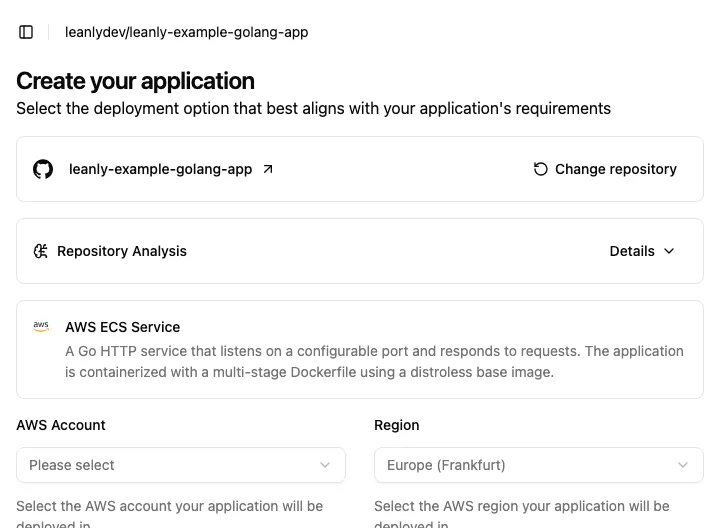
Step 2 — Watch us analyse your repo
We detect the Dockerfile in your repo and build the container from it directly — no buildpack guesswork. We determine what your app needs to deploy in your cloud account — the right services, sensible defaults, no input from you. Containerised apps like this one typically get ECS on Fargate (AWS) or Cloud Run (GCP) as the recommendation — but we may suggest something different depending on your workload's scaling, cost profile, or region requirements. You see exactly what's being created before anything executes.
Step 3 — Select your deployment target
If you have multiple cloud accounts connected, we'll show recommendations across all of them. Select the cloud account you want to deploy to — an ECS on Fargate recommendation on AWS, a Cloud Run recommendation on GCP, or whichever fits your requirements best.
Step 4 — Add environment variables and confirm
We show you what we recommend deploying before anything is created. Review the proposal, add any environment variables your app needs (database URL, API keys), then hit Create application.
Tip: You can drag and drop a
.envfile directly onto the environment variables section to import them in bulk.
We build and provision everything in your account. You'll have a live HTTPS endpoint shortly.
Step 5 — Verify
Hit the endpoint. Check your critical paths. Then open your cloud console — you'll see the actual resources running in your own account, visible and editable.
What you end up with
After deployment, your Go app runs in your own cloud account. The exact resources depend on what we recommend for your workload — containerised apps like this typically land on ECS on Fargate (AWS) or Cloud Run (GCP), but we may suggest something better suited to your scaling or cost profile. For ECS on AWS, you end up with:
- ECS service — your container, running on Fargate (no cluster to manage)
- Application Load Balancer — public HTTPS endpoint, TLS handled
- ECR repository — your container images
- Security groups, IAM roles — provisioned with sensible defaults; all visible in your AWS console
Whatever we recommend, you own all of it. We provisioned it; you can inspect it, extend it, or hand it to another tool later.
Pushing new versions works the same way as any deployment: push to your main branch, we build and deploy automatically via the GitHub integration.
What you give up
No database provisioning. We deploy your app, not your database. If your Go app connects to Postgres or another store, bring the connection string as an environment variable. Connect to a managed database in your cloud account or elsewhere — we'll provision the app around it.
No custom IAM policies out of the box. We provision a minimum-privilege IAM role for your deployment. If your app requires specific custom IAM permissions beyond what we provision, you'll configure those in your cloud console after the first deploy.